Ctrl+Alt+S (also Ctrl+,).
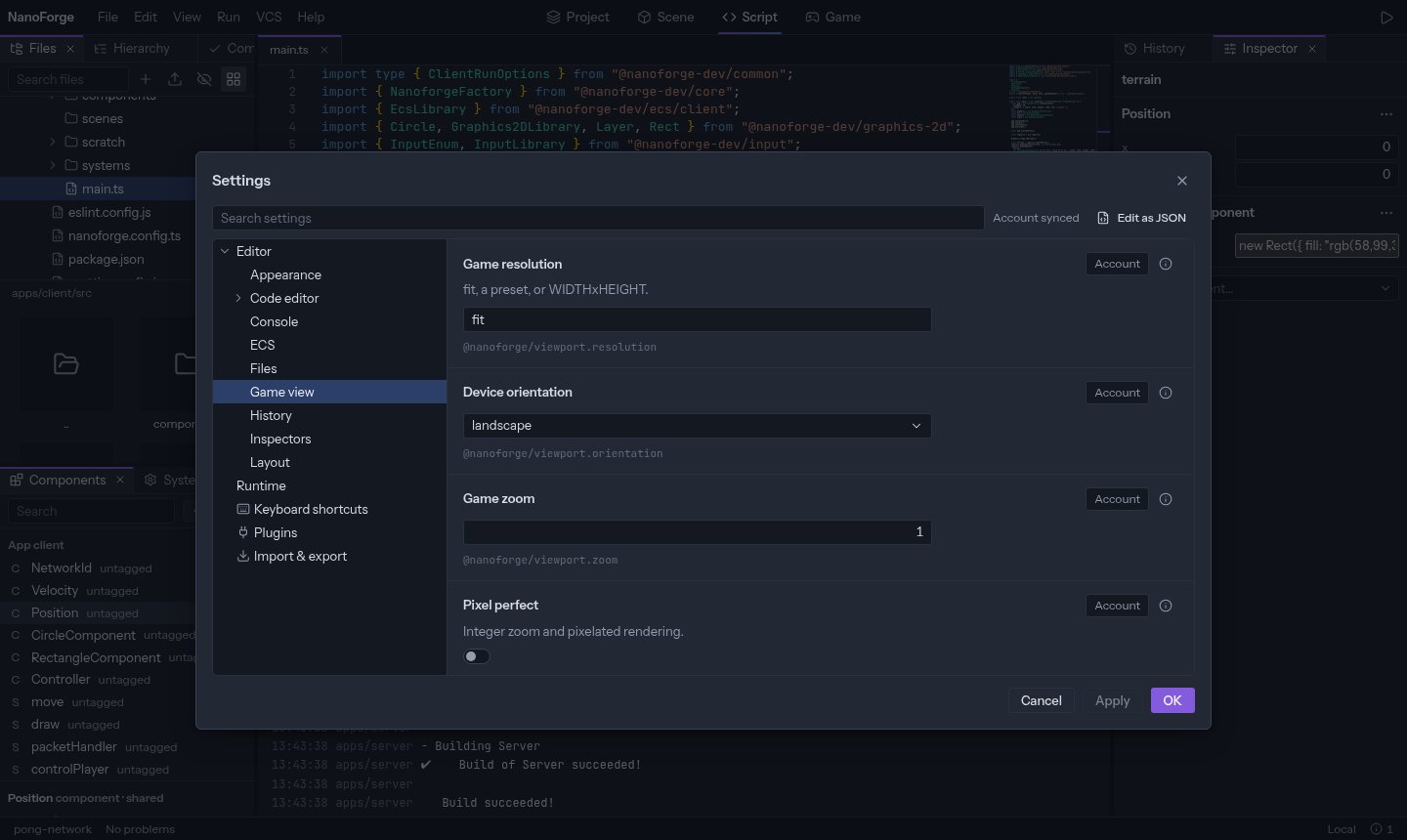
Escape) asks before dropping them.
Where a setting is saved
Each setting has a small menu that chooses where your change goes:
When several scopes have a value, the more specific one wins: Project (only me), then Project, This machine, Account. The inspect popover of a setting shows its value in each scope and resets one.
Edit as JSON opens the project’s settings file in the code editor, with completion.
Files kept in the browser
The editor keeps the files of the projects you open in your browser, so opening one again downloads only what changed. A file that several projects or branches have is kept once. Editor › Storage shows the space each project takes, with Clear for one project and Clear all. Cache size (500 MB) and Forget projects after (30 days) are saved on this machine: the least recently used files go first, and the editor never takes more than a tenth of what the browser allows. Removing a project from Recent also clears its files. Clearing only drops these copies: unsaved changes and undo history are kept apart and never cleared. Switch on Keep these files when the browser runs short of space so the browser does not remove them on its own. In the online editor, signing in as someone else on the same browser removes the previous user’s files.Import and export
The Import & export page saves a scope to a.json file, and loads one with a preview of what would change.
Appearance
Settings › Editor › Appearance shows each theme as a card in its own colors: click one, then Apply. Density makes panels, rows and buttons tighter or roomier. Icons chooses an icon theme. Get more themes opens the marketplace on the plugins that are themes (keywords:theme).
Keyboard shortcuts
The Keyboard shortcuts page lists every action with its shortcuts.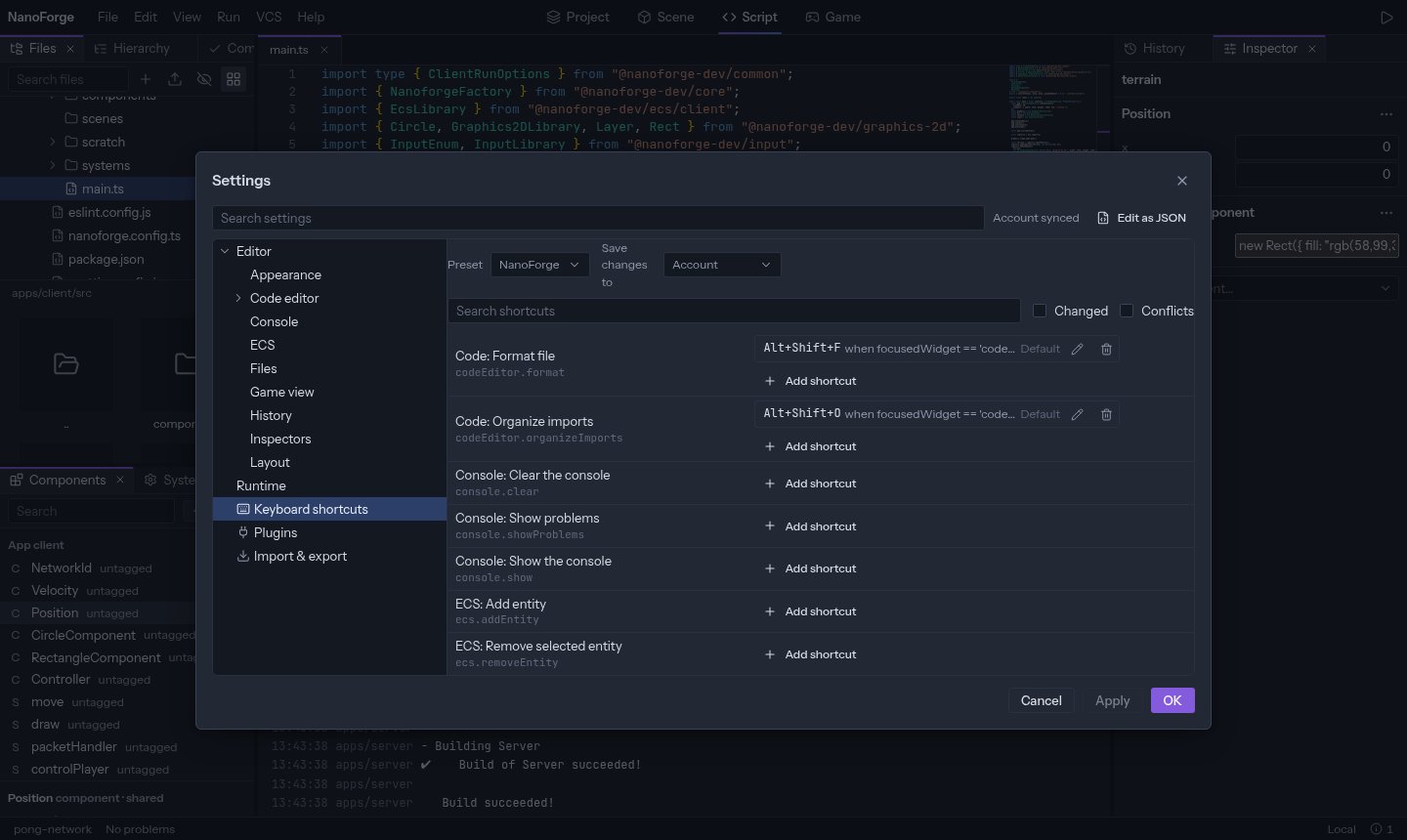
- Search by name or by shortcut (
ctrl+s). The filters show only what you changed, or conflicts. - Add shortcut on an action, then press the keys. Press a second combination to make a chord (
Ctrl+KthenCtrl+S). A shortcut starts withCtrl,Altor⌘, or is a function key (F1toF12): a plain key would no longer work while typing. A plain key is accepted when the condition needs!textInputFocus(as infocusedWidget == 'file-manager.files' && !textInputFocus, not under||): the shortcut then never fires in a text field or the code editor. - When the shortcut is already used, the dialog names the other action: keep both, replace, or cancel.
- Reset puts an action back to its default.
- A preset changes many shortcuts at once: NanoForge (the defaults), VS Code, Godot, IntelliJ (Shift twice for the command palette, Ctrl+K to commit, Alt+0 for the Commit window; the browser keeps Alt+1…9 for its tabs, so the preset leaves them out). Your own changes apply on top.